April 2015
Microsoft Outlook Shortcut Keys
Tuesday, April 21st, 2015
Written by Jane Hames
Microsoft Outlook Shortcut Keys
When delivering training courses, the particpants are often very keen for me to share keyboard shortcuts with them. The invention of the touch screen does not seem to have reduced requests for help with saving time using keyboard shortcuts. I find that Outlook shortcut keys are not commonly known, so here’s a few that should save a bit of time. Have a practise of these as soon as you can so they they become embedded in your mind…they’ll soon become second nature!
- Switch to Mail press CTRL + 1

- Switch to Calendar press CTRL + 2

- Switch to Contacts/People press CTRL + 3

- Switch to Tasks press CTRL + 4

Outlook can be used for so much more than just sending emails. Why not give as a call discuss some Outlook training for you, your team, or find ways to improve the way your organsation as a whole communicates with this great tool.
Written by Jane Hames Microsoft Outlook Shortcut Keys When delivering training courses, the particpants are often very keen for me to share keyboard shortcuts with them. The invention of the touch screen does not seem to have reduced requests for help with saving time using keyboard shortcuts. I find that Outlook shortcut keys are not […]
Reset a PowerPoint Slide to its Slide Master Settings
Monday, April 6th, 2015
Written by Jane Hames
Reset a PowerPoint Slide to its Slide Master Settings
If you have edited the formatting of a PowerPoint slide individually you may have detached it from its slide master. This means that it will be inconsistent with other slides. Also, if you change the formatting on the slide master, the changes may not be carried through to this slide. You can reset a PowerPoint slide to its slide master settings. Here’s how:
- Ensure that you are on the slide that has been detached from its master.
- Click on the reset button button on the Home tab of the ribbon

Written by Jane Hames Reset a PowerPoint Slide to its Slide Master Settings If you have edited the formatting of a PowerPoint slide individually you may have detached it from its slide master. This means that it will be inconsistent with other slides. Also, if you change the formatting on the slide master, the changes […]
How to copy formatting in Excel, Word and PowerPoint using the Format Painter
Monday, April 6th, 2015
Written by Jane Hames
How to copy formatting in Excel, Word and PowerPoint
I regularly want to copy formatting in Excel, Word or PowerPoint but rather than having to carry out the same formatting steps again, I use the Format Painter. This is a quick and easy tool to use, you just to need to know about it and then remember to use it.
- Highlight/select the text, cells or shape that has the formatting you want to reapply elsewhere.
- Click on the Format Painter button on the Home tab of the ribbon

- Highlight/select the text, cells or shape you want to copy the formatting to.
Tip: In step 2, if you want to be able to copy the formatting to more than one area, double click on the format painter. You will then to remember to click on it again to switch it off once you have finished.
-->Written by Jane Hames How to copy formatting in Excel, Word and PowerPoint I regularly want to copy formatting in Excel, Word or PowerPoint but rather than having to carry out the same formatting steps again, I use the Format Painter. This is a quick and easy tool to use, you just to need to […]
Customise the Toolbar in Word, Excel, PowerPoint, Outlook (Quick Access Toolbar)
Thursday, March 19th, 2015
Written by Jane Hames
Customise the Toolbar in Word, Excel, PowerPoint, Outlook
The toolbar in Word, Excel, PowerPoint, Outlook or other Microsoft Office programs is called the Quick Access Toolbar. It contains a few buttons ready for you to use, but it can be customised to include other things that you use frequently.
The quickest way to do this is:
- Find the button on the ribbon that you want to add.
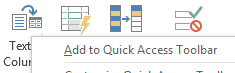
- Right click on a button and choose Add to Quick Access Toolbar
Another method is:
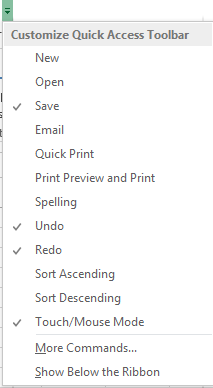
- Click on the arrow on the right hand end of the Quick Access Toolbar
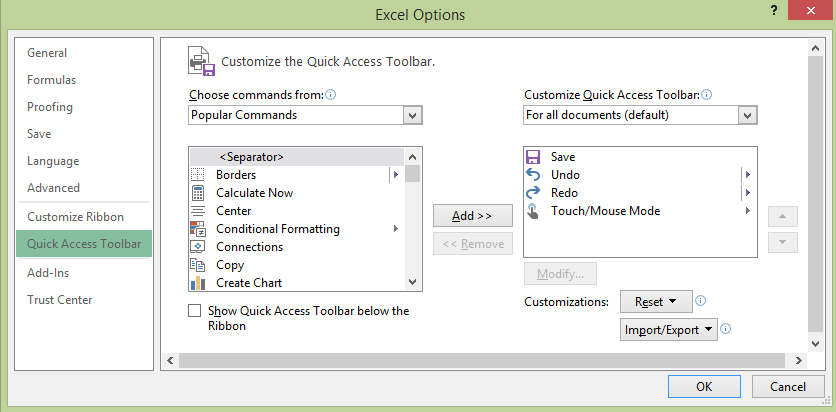
- Select an option form the list to add it the toolbar or if the option is not there, click on More Commands
- From the Choose Commands From drop down list, select the category to look in.
- Click on the option you want to add to the toolbar and then click on the Add button to add it to the Quick Access Toolbar.
- Click on OK.

Written by Jane Hames Customise the Toolbar in Word, Excel, PowerPoint, Outlook The toolbar in Word, Excel, PowerPoint, Outlook or other Microsoft Office programs is called the Quick Access Toolbar. It contains a few buttons ready for you to use, but it can be customised to include other things that you use frequently. The quickest […]
Excel Number Formatting For International Users
Tuesday, March 10th, 2015
Written by Jane Hames
Excel number formatting for when working with users with a different international format
As often happens during Excel training, recently a question came up that I had not been asked before. The way people use Excel is so personal to their own style, the type of work they do and what their organisation does, so I love it when a question is asked that enables me to do some troubleshooting and experiment with new ways of working.
The question this time, was from an Excel user who works in the UK and – as we do here – uses a comma to separate thousands and a dot as the decimal place. The user was receiving workbooks from colleagues elsewhere in Europe where they were using a dot to separate the thousands and a comma instead of a dot for decimals. So, as you can imagine the user was getting very frustrated and even had to resort to re-typing the numbers!
My challenge was to solve this problem, and this what I did:
- This is what I was starting off with:

- Select the cells containing the numbers with the commas and dots in the wrong place.
- From the Home Tab, click on the Find & Select button

- Choose Replace and type a dot in the Find what box and leave the Replace with box blank.
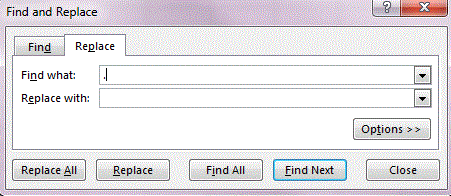
- Click on Replace All to replace all dots in the selected cells with nothing.
- From the Find and Replace box, now type a comma in the Find what box and type a dot in the Replace with box.
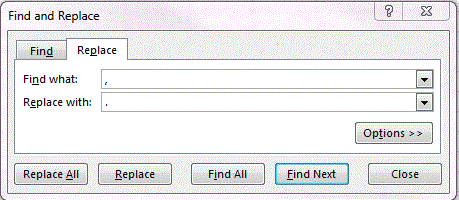
- Click on Replace All to replace all commas in the selected cells with a dot.
- Click on the close button.
- Now format the selected cells with Comma Style formatting by clicking on the Comma Style button in the Number group of the Home Tab.

Written by Jane Hames Excel number formatting for when working with users with a different international format As often happens during Excel training, recently a question came up that I had not been asked before. The way people use Excel is so personal to their own style, the type of work they do and what their organisation […]
Using The Windows Snipping Tool For Taking A Screen Shot / Screen Grab
Monday, June 23rd, 2014
Written by Jane Hames The Windows Snipping Tool for taking screen shots / screen grabs I frequently need to take a screen shot / screen grab of just part of what is on my screen which I will then paste into a Word document or PowerPoint slide. My favourite tool for doing this is the […]
How To Prohibit Weekends Using Data Validation
Monday, June 23rd, 2014
Written by Jane Hames How to prohibit weekends using Data Validation The standard Data Validation offers some really useful options such as controlling the dates, text and numbers that can be entered in to cells. A few times recently, I have been asked how to set up data validation so that it only allows weekdays […]
How to create a variable drop down list in Excel
Tuesday, May 27th, 2014
Written by Jane Hames Creating a variable drop down down list using Indirect During some advanced Excel training, I was asked how to create a variable drop down list in excel using a data validation list that changes depending on the value in a related cell. The reason for the question was so that estimators […]
Remove date formatting from cells in Excel
Monday, May 19th, 2014
Written by Jane Hames How to fix numbers when they appear as a date in cells: When a cell has been formatted as a date, that formatting will be remembered (unless you clear it). What this means is that even if you press delete on the keybaord to clear the contents of a cell, that […]
Excel Data Labels: How to add totals as labels to a stacked bar chart (pre-2013)
Wednesday, May 7th, 2014
Written by Jane Hames On some recent Excel 2010 training a question came up about how can the totals be shown as data labels rather than as a bar in the chart. In pre-2013 versions this is not obvious and to begin with I was stumped, but (as is often the case with software use) […]


Why choose Glide?

Our Unique Approach
We work on a bespoke, requirements-led basis rather than offer a set range of courses. We will work with you to identify your specific requirements and objectives before any training is delivered. That way you can be sure that training will always deliver exactly what you're looking to achieve.

Our Prices
We believe in a fair price for a good service. High quality training does not come cheap. However we can provide an excellent service for less, as we deliver all training online or on-site at our customers' premises so avoiding the overheads required to maintain a dedicated training centre.

Our Expertise
Our trainers have designed and delivered IT training for a wide range of organisations and people including accountants, lawyers, data analysts, sales consultants and buyers. Clients benefit from our our ability to find creative solutions to their problems based on many years of experience.