October 2016
Show PivotTables over separate sheets using Report Filter Pages
Monday, October 17th, 2016
Written by Jane Hames
If you use Excel to summarise and analyse data with pivottables, there may be some very useful options that you haven’t yet discovered (because they are fairly well hidden!). One such feature is the PivotTable Report Pages option. If you are using a report filter (you will have a field name in the Report Filters/Filters part of the pivottable layout box, you have the ability to filter the pivottable without having to show that field in the pivottable itself. See example below: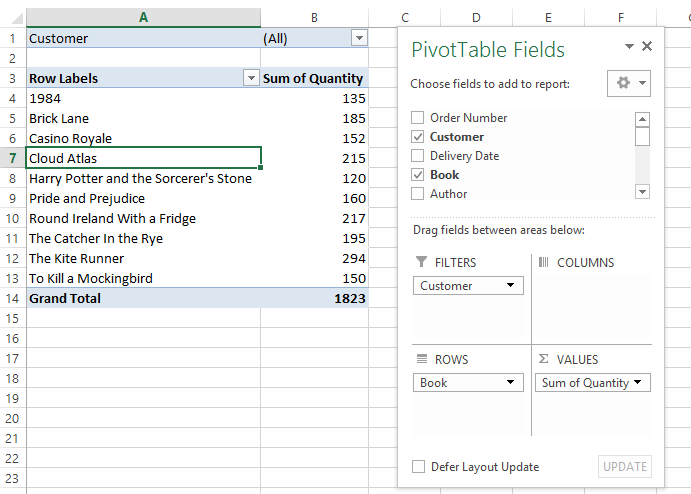
In my example, as shown above, I would like to have a separate worksheet with its own pivottable for each of my customers. The Show Report Filter Pages options will do this in a flash! Here’s how:
- Ensure that you are clicked into the pivottable.
- From the Analyze tab (or pre-2013, use the Options tab) on the ribbon, select the arrow next to the Options button.
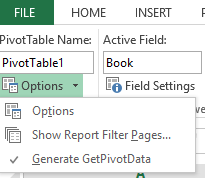
- Select Show Report Filter Pages and click on the field you will be using.
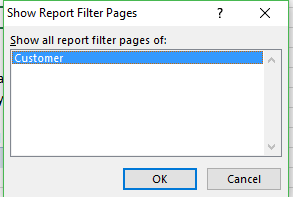
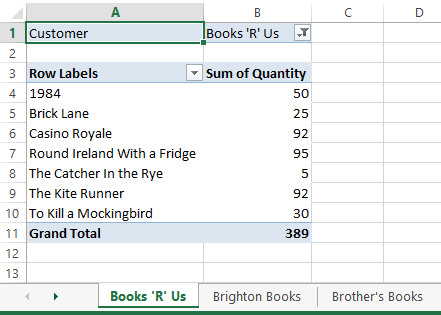
- When you click OK, a new worksheet will be created for each of your items in that field. In my example, I get a new worksheet with a pivottable for each customer.
If you would like to learn how to use PivotTables from scratch or just to learn more about Excel please do get in touch.
Written by Jane Hames If you use Excel to summarise and analyse data with pivottables, there may be some very useful options that you haven’t yet discovered (because they are fairly well hidden!). One such feature is the PivotTable Report Pages option. If you are using a report filter (you will have a field name […]
Excel Advanced Filter – find records with blank cells
Tuesday, September 27th, 2016
Written by Jane Hames
On an Excel course this week, I was asked how to apply an advanced filter to show records that contain some blank cells. This is something that isn’t very obvious, but if you know how to use the advanced filter in Excel, you will find it very easy! Here’s a snippet of my data which does have a couple of records which are missing some data.
I have created a criteria range below my data. I want to filter for any records which have EITHER the Customer or the Book cell blank. In the image below, you can see that I have entered the = below the customer and the book headings. (The = are on different rows to make this an OR filter).: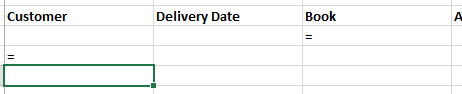
I am now ready to run my advanced filter as shown here: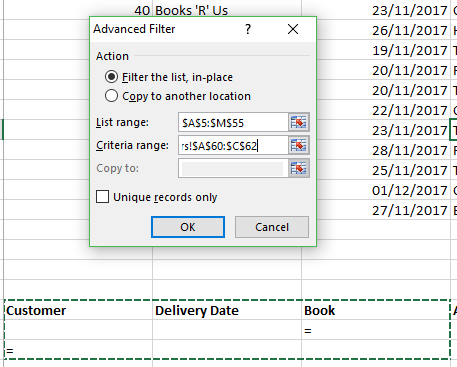
Here are my results:
If you would like to learn how to use the Advanced Filter from scratch or just to learn more about Excel please do get in touch.
-->Written by Jane Hames On an Excel course this week, I was asked how to apply an advanced filter to show records that contain some blank cells. This is something that isn’t very obvious, but if you know how to use the advanced filter in Excel, you will find it very easy! Here’s a snippet […]
Go to linked cells in an Excel formula (Quickly!)
Monday, July 4th, 2016
Written by Jane Hames
If you have set up a formula in one workbook that uses cells from a different workbook, the two workbooks become linked. It is useful to be able to go to linked cells in an Excel formula, and it would be great to be able to do that both quickly and easily!
Here’s the slow way: If you are on the cell that contains the formula, you can use Trace Precendents, double click on the dotted line and then use Go To to go to the cells used in that formula.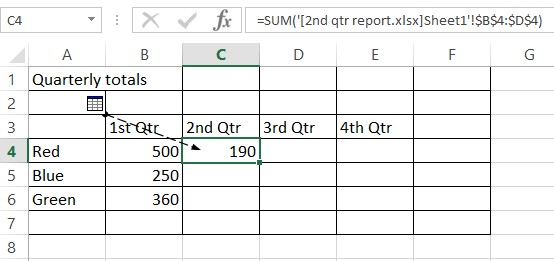
There is quicker way! It takes several clicks to get there using the method described above, but there is a very quick keyboard shortcut that does the same thing.
If you have tried to use Google to find this shortcut key, you might have trouble. I found it very tricky to find a search phrase that explained what I wanted to do. Asking amoungst a group of Excel users it seemed that this shortcut was a mystery until one of the group had a sudden recollection of what the shortcut is. Now, those of you who know me and/or follow my posts, I certainly don’t believe in keeping these kind of software secrets as secret, so here’s what you need to know:
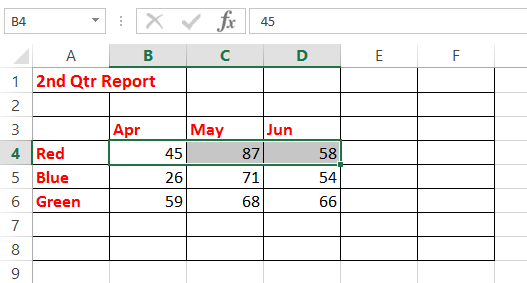
- Click on the cell that contains the formula.
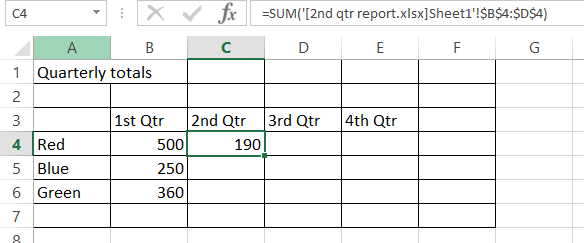
- On the keyboard, press, CTRL [
- You will taken to the first cells used in the formula. (Regardless of whether or not the linked workbook was open already.)
-->
Written by Jane Hames If you have set up a formula in one workbook that uses cells from a different workbook, the two workbooks become linked. It is useful to be able to go to linked cells in an Excel formula, and it would be great to be able to do that both quickly and […]
Finding free images for your Word and Docs documents
Thursday, May 26th, 2016
Written by Jane Hames
How to find images that are free to use in Microsoft Word and Google Docs
When searching for an image to insert into a Microsoft Word or a Google Docs Document, do you check the copyright? Depending on the software you are using to create your document, and the search engine being used for the search, you will get different results and options to filter by license. My preference is to use images that I know are licensed for commercial use and modification. This is mainly because I am not an expert in copyright laws, so by filtering for images that are labelled for use commercially, and are allowed to be modified, I know that I am safe. However, filtering to this lowest level of licensing does produce far fewer image results, so if you need more options it would be worth having a look at stock images which you can pay to use.
Here is a basic run down on what happens when you do an image search online and within Microsoft Word and Google Docs.
Searching for images within Microsoft Word:
If you search using Word’s online images feature (which replaced Clip Art), you will be able to filter your search to display all image results or those with a creative commons license. The creative commons license does NOT necessarily mean that you have the right to use the image, but it does gives broad permission that you can use it within the limits of that license. This is confusing, and as a result, if I want to use the Bing image search, I do not do it within Word. Keep reading for some alternatives!

Searching for images with Bing in your browser:
To avoid the confusion of creative commons, if you search within your browser using bing images, you can choose an image without licensing constraints to insert into Word.

Searching for images within Google Docs:
If you choose to insert an image in Google Docs and then select the search option, the results should be labelled for commercial reuse with modification. Just double check the description below the search box as shown here:

Searching for images with Google Images in your browser:
When using Google Images, ensure you change the licensing filter, as shown here:

Here are some sites which will provide more information about licensing and copyright:
http://creativecommons.org/licenses/
http://onlinehelp.microsoft.com/en-gb/bing/dn261810.aspx
https://support.google.com/websearch/answer/29508?hl=en
Here are some sites where you can pay for images:
Glide Training provides Google Docs and Microsoft Word training in Sussex, London and the South.
Written by Jane Hames How to find images that are free to use in Microsoft Word and Google Docs When searching for an image to insert into a Microsoft Word or a Google Docs Document, do you check the copyright? Depending on the software you are using to create your document, and the search engine […]
Bored of PowerPoint Bullet Points?
Wednesday, May 11th, 2016
Written by Jane Hames
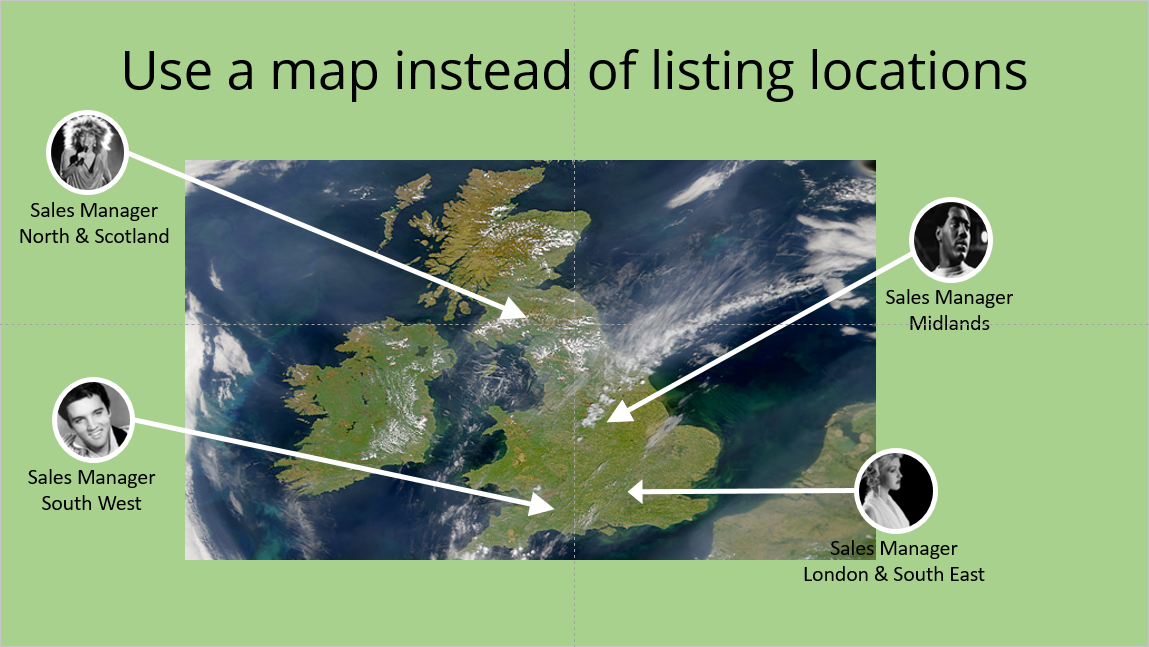
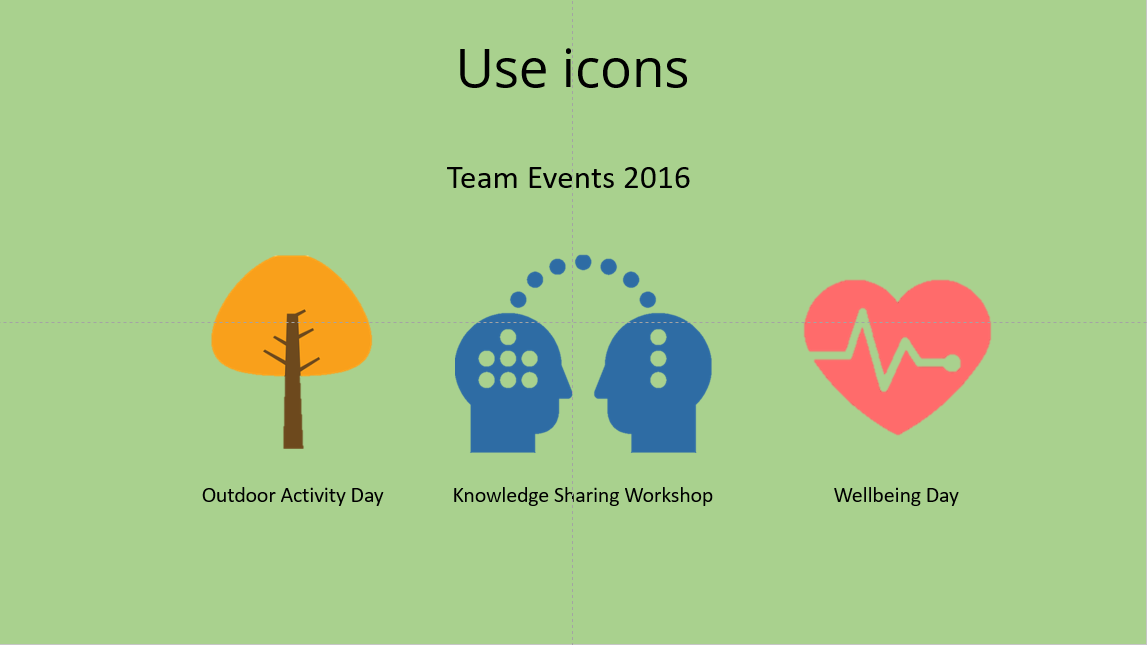
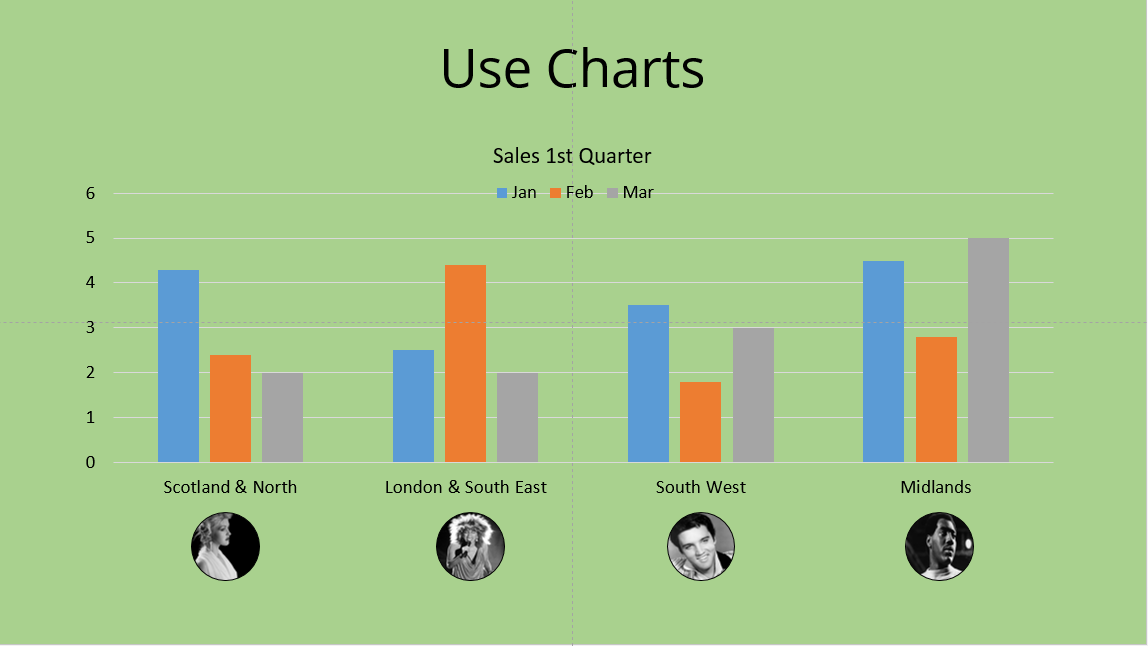
More and more, PowerPoint users want to avoid “Death By PowerPoint”. Bullet points can be overused in PowerPoint and during recent PowerPoint training we have been thining about how we could replace bullet points with something else. Most good presenters who use bullet points, just give a teaser or a summary of what they are going to talk about by adding a couple of words to a bullet point. Would you consider using images, maps, charts or some other visual indicator as an alternative? Here are a few ideas:
Use SmartArt diagrams to enhance a bulleted list:

Use maps or images instead of listing items:
Use icons and short descriptions:
Use charts and images to illustrate numbers:
If you have any other ideas, please get in touch to share them with me. Glide Training provides bespoke Powerpoint training in Sussex, London and the South. If you or your team would like to be more efficient and inventive with PowerPoint, we can help. jane@glidetraining.com 01273 956200
Written by Jane Hames More and more, PowerPoint users want to avoid “Death By PowerPoint”. Bullet points can be overused in PowerPoint and during recent PowerPoint training we have been thining about how we could replace bullet points with something else. Most good presenters who use bullet points, just give a teaser or a summary […]
Improve your Excel skills with Emotional Intelligence
Monday, February 15th, 2016
Written by Fiona Doran-Smith
You may be surprised to even see Emotional Intelligence (EI) and Excel used in the same sentence. You might be wondering what on earth one has to do with the other. Well, read on and discover how using your EI can help you to be more effective in Excel.
As described by the originators of the theory, Jack Mayer and Peter Salovey, EI is “the ability to perceive emotion, integrate emotion to facilitate thought, understand emotions and to regulate emotions to promote personal growth”. The part that’s particularly helpful for us in the context of Excel is the second part; integrating emotion to facilitate thought, sometimes referred to as Using Emotion.
This second area of the psychological theory refers to the fact that emotion affects thinking. Many studies in Psychology and Neuroscience have confirmed this. Contrary to popular belief that doesn’t mean that they inhibit it, it’s quite the opposite – emotions can help us to be more effective. More effective in creating an Excel spreadsheet, a PowerPoint presentation or a mind-map in Visio. In short, emotions help us make better decisions and if we use them effectively they make us more effective in anything we do.

So how can this help you to improve your Excel skills? Firstly you need to know that certain moods are suitable for certain tasks. It’s called Mood Task Match. Research shows that positive moods are useful for creative thinking. It’s helpful to feel happy when doing things where you need to think big picture and come up with ideas. For example brainstorming new product ideas. On the other hand negative moods, also called avoid moods, are useful for more analytical thinking. One such study showed that doctors reading x-rays were more accurate when they were in a negative mood. When they were in a positive mood they missed things. So, negative mood such as mild annoyance or anxiety will help you to focus on detail, be more analytical and notice errors. For example – checking an Excel database of customer details.
So next time you’re about to open up Excel aim to be proactive with Mood Task Match. Ask yourself “What mood am I in?” And “Is it useful for the task that I’m about to do? You then have 2 choices; change the mood or change the task. Some people are better at switching moods than others. If you don’t find it so easy to switch moods you can either choose a more suitable task or consciously change your mood.
Useful ways to generate a positive mood are:
- Put some headphones in and listen to your favourite piece of music for a few minutes.
- Go for a short walk. Just a 10 minute stroll around the block can improve your mood immensely
Useful ways to generate a negative mood are:
- It may be that you find just the though of completing an excel spreadsheet is enough to make you feel in a bad mood! If so, just get started and if you’re undistracted you should be able to get the focus you require
- You don’t want to feel too negative (on a scale of 1-10, no more than 5 should do it) but you could briefly note down 1 to 3 challenges you’re having at the moment
So there you have it, emotional intelligence can help you to be more effective with Excel!
You can receive access to more free resources such as our E-Guide series on how emotional intelligence can help you overcome other everyday challenges like difficulty saying no and procrastination. Use code BGT1 and sign up here: www.yellowtreewellbeing.com/hello
Fiona Doran-Smith is an ILM Level 7 Executive Coach, an Emotional Intelligence (EI) specialist qualified to administer and interpret the MSCEIT (EI test) and a qualified Trainer and Facilitator. She’s specialised in the field of personal development for over 12 years and has substantial experience helping organisations to develop their people. For more information, you can visit the Rise website here: http://www.riseld.co.uk/
-->Written by Fiona Doran-Smith You may be surprised to even see Emotional Intelligence (EI) and Excel used in the same sentence. You might be wondering what on earth one has to do with the other. Well, read on and discover how using your EI can help you to be more effective in Excel. As described by […]
Excel Vlookup using TRUE
Monday, September 28th, 2015
Written by Jane Hames
This guide is aimed at Excel users who can already use the VLookup function and want to learn more about it. This is how to use the Excel Vlookup using TRUE
If you use a VLookup, the chances are you will use FALSE as the Range Lookup finding an exact match for the Lookup Value in the first column of your Table Array. I often get asked when you would use TRUE as your Range Lookup and this is good question as it’s not used half as often as FALSE.
Last week I was able help one of my Excel course delegates to solve a problem she had, and the solution to the problem was to use a Vlookup with TRUE. I wanted to share what we did with my readers and followers as it might give you some good ideas of things you could do with your own work. All data in the guide below is fictional, but based on the real world scenario:
The scenario I was given, is that as shown in the image below, there are a list of date ranges with different exchange rates for different date ranges.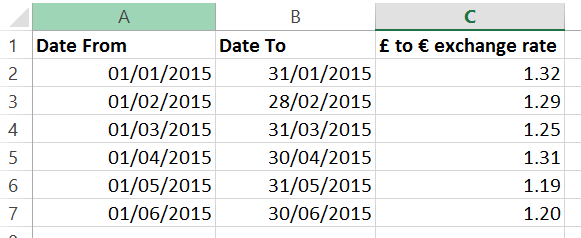
We wanted to ensure that the correct exchange rate was used to calculate the payment amount in Euros as shown in the image below: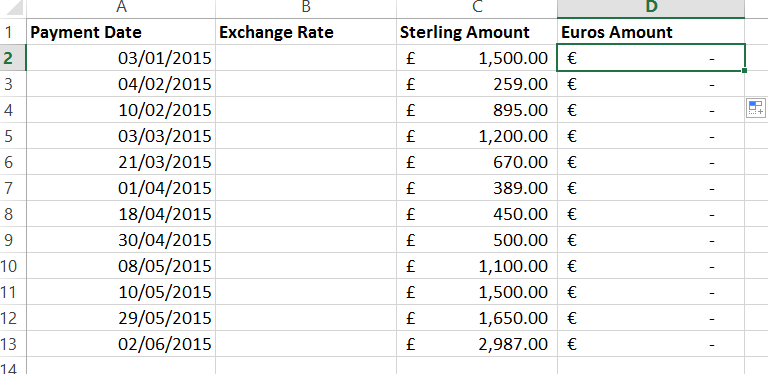 In order to do this, I used a Vlookup to pick up the correct exchange rate for the specified payment date. This payment date would need to sit in one of the date ranges listed. This is what we used to do this calculation:
LOOKUP_VALUE: The payment date 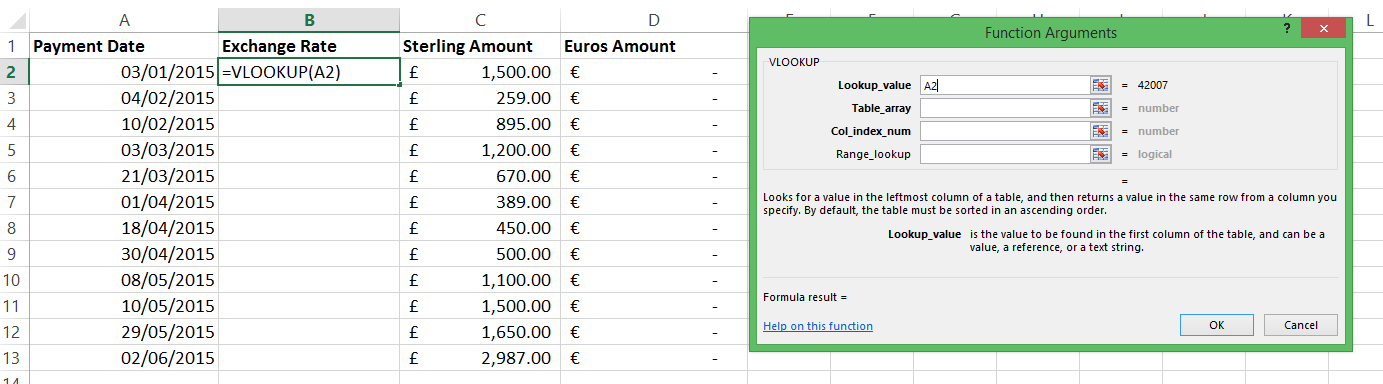
TABLE_ARRAY: The table which shows the date ranges listed in ascending order (the Date From in the first column of the table_array is what Excel will use). The exchange rate is in the third column of the table_array.: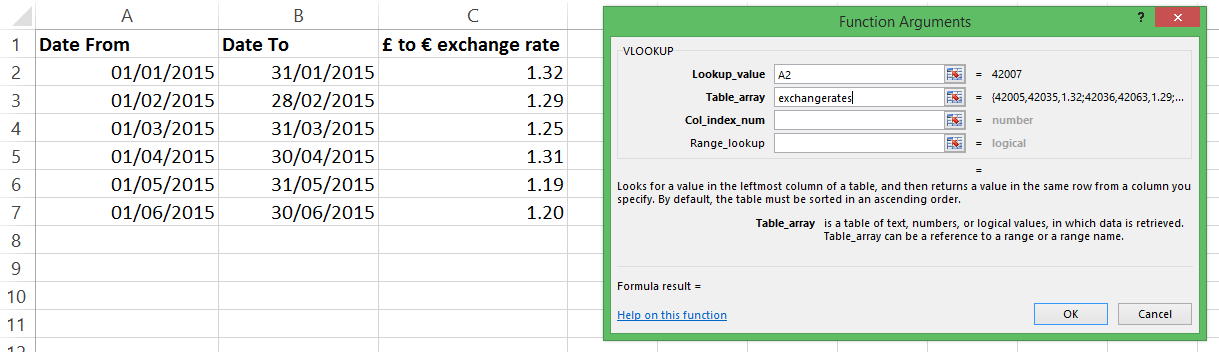
COL_INDEX_NUMBER: 3 This is the column in the table_array that contains the exchange rate we are looking for.
RANGE_LOOKUP: TRUE This ensures that Excel will look at the earliest date in the list that is close to the payment date (our lookup_value).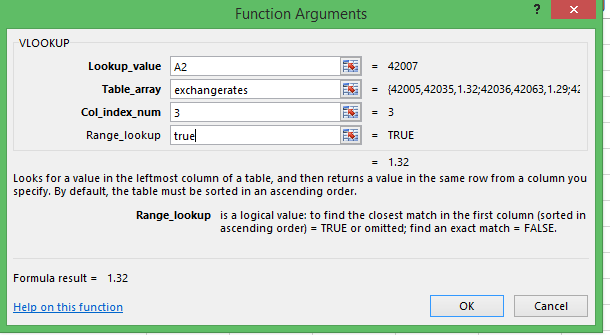
This what the formula looks like at the end: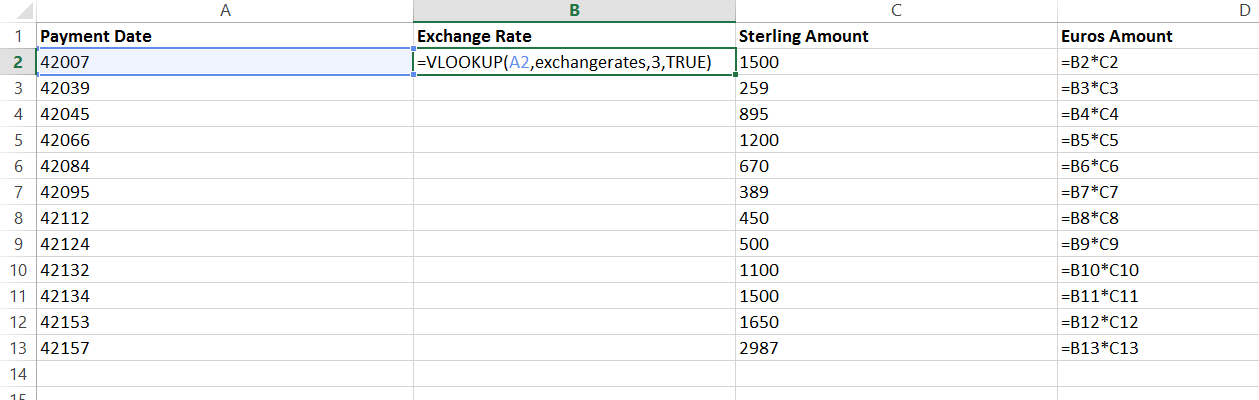
Note that the payment date is shown as its reference number rather than the date. This is because I have selected SHOW FORMULAS in order to show you the formulae on the sheet. I then copied the formula down so that I have ended up with this end result: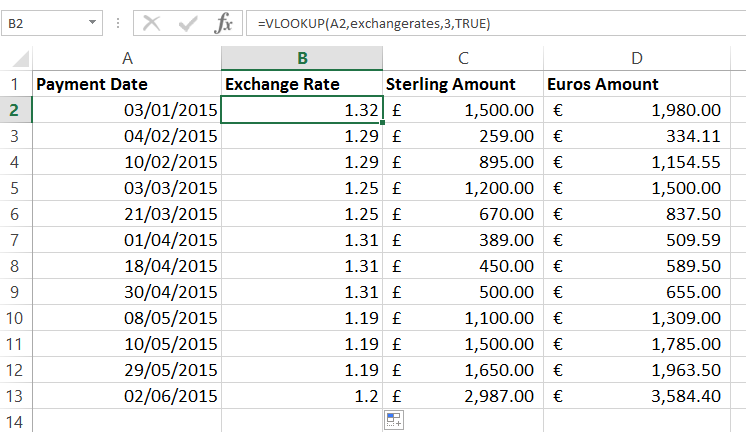
If you would like help with the Vlookup or other functions in Excel, please get in touch.
-->Written by Jane Hames This guide is aimed at Excel users who can already use the VLookup function and want to learn more about it. This is how to use the Excel Vlookup using TRUE If you use a VLookup, the chances are you will use FALSE as the Range Lookup finding an exact match […]
Need to remove underline from hyperlinks in PowerPoint? Here’s an easier alternative
Thursday, May 21st, 2015
Written by Jane Hames
Need to remove underline from hyperlinks in PowerPoint? Here’s an easier alternative
If you have added a hyperlink to text in PowerPoint, the default theme will make it blue and underlined. I often get asked how to change this, and one option is to create your own theme with a custom colour scheme. The alternative I am going to guide you through is often more popular with the people I meet on training as it is a bit quicker and easier than creating a custom theme.
Here’s what a hyperlink on text looks like when using the default theme and colour scheme:
So, if you need to remove underline from hyperlinks in PowerPoint, you may want to consider inserting a shape next to the text and turn that into a hyperlink (The shape could be made invisible on the slide if required). Here’s how:
- From the Insert tab on the ribbon, select Shapes and click on the shape you want to draw.
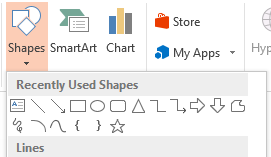
- Click and drag to draw the shape on your slide.
- Move over the middle of the shape add drag it to move it if required.
- Click on the shape (if it is not already selected) and then from the Insert tab on the ribbon, choose Hyperlink.
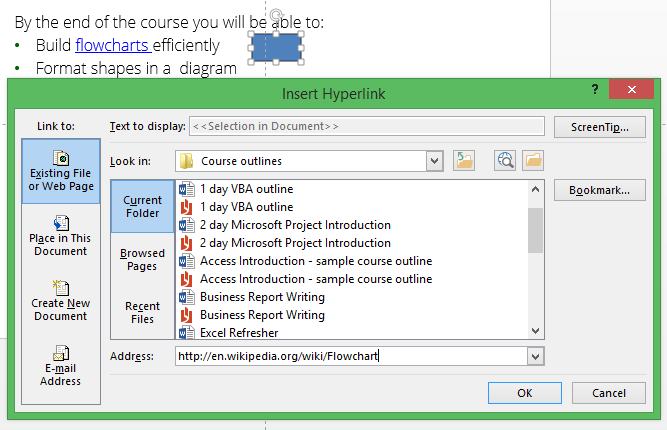
- Navigate to the file you want to link to or copy and paste a link to a webpage into the Address box.
- Click on OK.
- To format the shape, click on it and go to the Drawing tab on the ribbon.
- Choose your required colour and outline from the Shape Fill and Shape Outline buttons.

Tip: You could make the shape invisible by choosing No Fill and No Outline, or something very pale so that only the presenter is aware of the shape. When running the slide show in Slide Show view, you will see the hyperlink hand shape when you move over the shape so you can just click to follow the hyperlink.
-->Written by Jane Hames Need to remove underline from hyperlinks in PowerPoint? Here’s an easier alternative If you have added a hyperlink to text in PowerPoint, the default theme will make it blue and underlined. I often get asked how to change this, and one option is to create your own theme with a custom […]
Easy ways to prepare to get the most from your training
Wednesday, May 20th, 2015
Written by Jane Hames
When you have a busy workload, giving up a day or two to attend training can sometimes be a struggle and to prepare for the training doesn’t always make it to the top of the priority list. The tips I will share with you here really won’t take much time at all. Just a little bit of investment will enable you to get the best you can from your course.
As an IT trainer, I do find that, once people are in the swing of the training they are always pleased to have given up their time to come along. The main reason for this is that they very quickly realise how much time they will save and how much more value they will be able to get out of their work. (The idea of gaining a reputation for being “good at the software” is often a motivation too!)
Is just turning up and hoping for the best going to enable you to really achieve your objectives. Do you even know what the course is about yet or have you “been sent”? Here are a few things to think about prior to the training (even if the only time you’ve had is on your journey there). Having answers to these questions will ensure you get the most from the day and that your trainer can properly cater to your needs.
1. What are your objectives?
- Unless you know exactly what you need to learn, this could seem quite a vague question, so here’s an example that might help you answer it. Let’s say you are going to attend an Excel course. You have dabbled with Excel, but it takes ages and you don’t feel confident that you are getting things right. You could save a copy of one of your workbooks (or colleague’s workbooks) to show to the trainer. Even in a group training course, a good trainer will find time to have a look at you work and advise you on it.
- Write a list of things you aren’t confident with.
- Think about all the things you can do so far this will be really useful information for the trainer.
- Maybe a colleague has said, “oh you definitely need to learn PivotTables”. Your colleague might be right, but focussing on one feature might mean that you overlook the benefits of some other features that the trainer is going to show you.
- Bear in mind, you might not know what you don’t know, so be open minded as it might be a combination of features that will enable to you to acheive these objectives.
- Be prepared to think creatively and work with your trainer to find solutions to your problems. There’s not always an instant answer to a problem, but a bit
of troubleshooting and some creative work arounds, you should hope to get where you need to be. - Have a big picture idea of what you would like to be better at. Your objectives might be to improve your overall way of working. Objectives don’t have to be a list of features!
2. Do you know how you want to develop your skills both short and long term?
- Things can change so quickly in the world of work, so it might that in short term you want to able to do X, Y & Z. It might be worth thinking how you want to develop your skills, as an individual in your current job and also within your current team and organisation. Perhaps you have a long term career plan – your trainer might be able to advise you on the next steps for your learning.
3. Does your manager or organisation have some plans for your development that aren’t clear to you?
- Sometimes, I work with people who tell me that their manager has “sent” them on the training, but they don’t really know why. If that’s you, ask your manager what they have in mind and what THEIR objectives are. This might help you to determine your own objectives. If you have an unapproachable manager, just bear in mind that being proactive about finding out why you are attending the training will result in a huge benefit to your manager as you can then focus on achieving what will be required of you. It should be a win win as you can feel motivated to acheive what you need and your manager knows that you are taking it seriously. A good manager will have already talked to you about the training and got your input and I know this is more often the case!
Most importantly – training should be enjoyable! At Glide Training we aim to make it a great day that is highly productive and leaves you full of confidence and enthusiasm. We hope to see you soon and if you have any questions about what training is best for you, we would love to have a chat about it, so please do give us a call.
Written by Jane Hames When you have a busy workload, giving up a day or two to attend training can sometimes be a struggle and to prepare for the training doesn’t always make it to the top of the priority list. The tips I will share with you here really won’t take much time at […]
Turn a positive number into a negative in Excel using Paste Special
Wednesday, April 29th, 2015
Written by Jane Hames
Turn a positive number into a negative in Excel using Paste Special
During Excel training last week, I was asked how to turn a positive into a negative in Excel. The Excel user was calculating balances but the expenses came in form Sage as positive values, whereas they needed to be negative values.
The ABS function can be used to turn a negative into a positive (see how to do that here). To turn a positive into a negative you can use Paste Special. This is what we did:
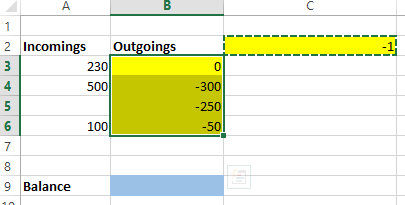
- Starting with a sheet laid out a bit like this example, type -1 (in yellow here) somewhere on the sheet. This -1 will be used to multiply our positive numbers by minus 1.
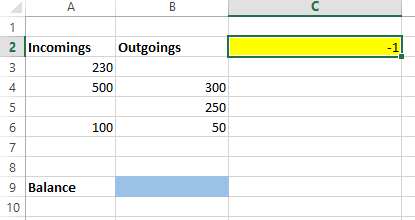
- Highlight the cell with -1 in it.
- Select copy.
- Highlight the cells to be changed into negative values. (You should still have the dotted outline showing around the -1 cell to indicate that this cell has been copied.)
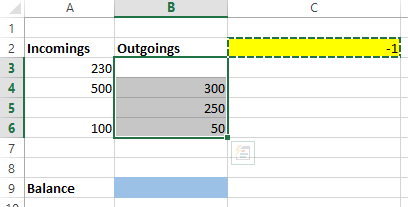
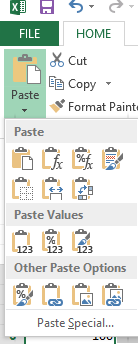
- Select Paste Special from the arrow on the Paste button on the Home tab.
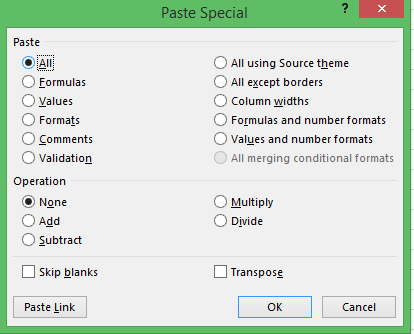
- From the Paste Special box, select Multiply, then click on OK.
- Your positive numbers are now negative.
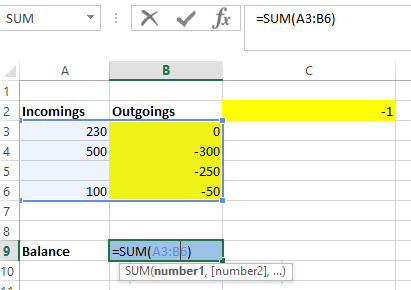
- I finished this off by calculating the sum of my incomings and outgoings to give me the balance.
Excel training is the most commonly requested subject at Glide Training. We have helped hundreds of people to become more efficient and to enjoy their Excel use.
Written by Jane Hames Turn a positive number into a negative in Excel using Paste Special During Excel training last week, I was asked how to turn a positive into a negative in Excel. The Excel user was calculating balances but the expenses came in form Sage as positive values, whereas they needed to be […]


Why choose Glide?

Our Unique Approach
We work on a bespoke, requirements-led basis rather than offer a set range of courses. We will work with you to identify your specific requirements and objectives before any training is delivered. That way you can be sure that training will always deliver exactly what you're looking to achieve.

Our Prices
We believe in a fair price for a good service. High quality training does not come cheap. However we can provide an excellent service for less, as we deliver all training online or on-site at our customers' premises so avoiding the overheads required to maintain a dedicated training centre.

Our Expertise
Our trainers have designed and delivered IT training for a wide range of organisations and people including accountants, lawyers, data analysts, sales consultants and buyers. Clients benefit from our our ability to find creative solutions to their problems based on many years of experience.